

POS software for Windows

Point of sale, inventory and accounting for your store in one program

WolkPos is a Windows program for supermarkets, shops and other retail stores. Sales, stock, debts and profit are all in one place, and all your data stays on your computer.

  • Windows 10 and 11
  • 5 languages
  • Your data on your computer
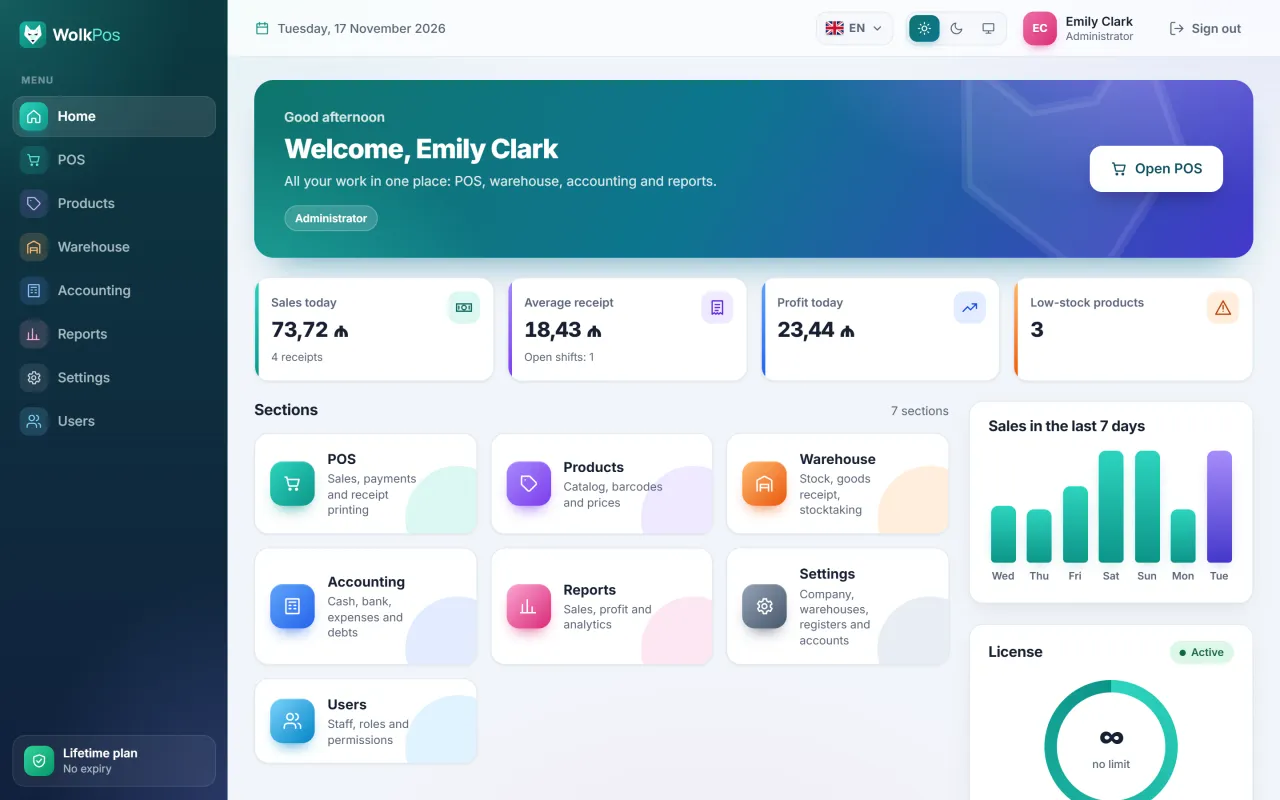
WolkPos home screen: welcome panel, today’s sales and number of receipts, average receipt, today’s profit, number of low-stock products, section tiles, a sales chart for the last 7 days and the license card.
Home screen: today’s sales, average receipt, profit, low-stock products and a 7-day chart.

Who it’s for

For any store that sells by barcode

From a shop with one register to a supermarket with several: for any retail business that needs to keep track of sales, stock and debts.

  • Supermarkets and grocery stores

    Fast barcode sales, scale barcodes for goods sold by weight, X and Z shift reports.

  • Clothing and shoe stores

    Discounts, returns and several barcodes per product. Sales broken down by cashier and by day.

  • Pharmacies

    Goods receipt, a list of low-stock products, supplier debts and statements of account.

  • Building materials and hardware

    Sales on credit, customer debts, several warehouses and transfers between them.

  • Cosmetics and perfume

    Discounts, held sales, card and split payments, profit by product.

  • Electronics and home appliances

    Weighted average cost, profit by product and returns to suppliers.

Features

From the register to the report

Every section of the program has its own color, and so it does here. Everything described below already works in the current version.

POS

Fast sales and receipts

The cashier scans a barcode, the item goes into the cart and the total is shown right away. A shift opens in the morning and closes with a Z report at the end of the day.

  • Shifts: opening, X and Z reports
  • Barcode sales, discounts and held sales
  • Payment: cash, card, split or on credit
  • Returns
  • 80 mm receipt printing
  • Keyboard shortcuts
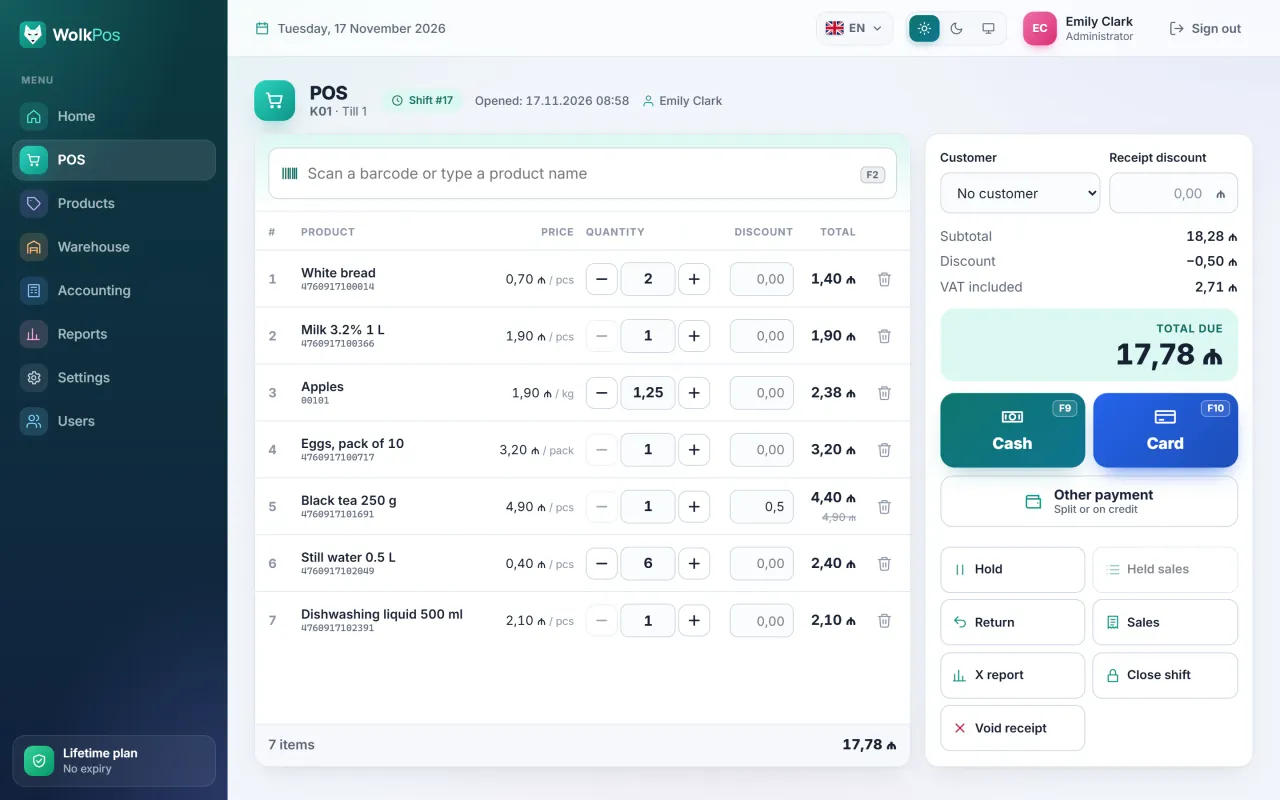
WolkPos point-of-sale screen: barcode search, 7 products in the cart (including 1.25 kg of apples read from a scale barcode and discounted tea), customer and receipt discount fields, subtotal, discount, VAT, amount due, and cash and card payment buttons.

Products

A tidy catalog

Products are grouped into categories, and each one can have several barcodes. When stock drops below the minimum, the product appears on the home screen.

  • Catalog and categories
  • Several barcodes per product
  • VAT 18% or VAT-exempt
  • Scale barcodes (starting with 20–29)
  • Minimum stock
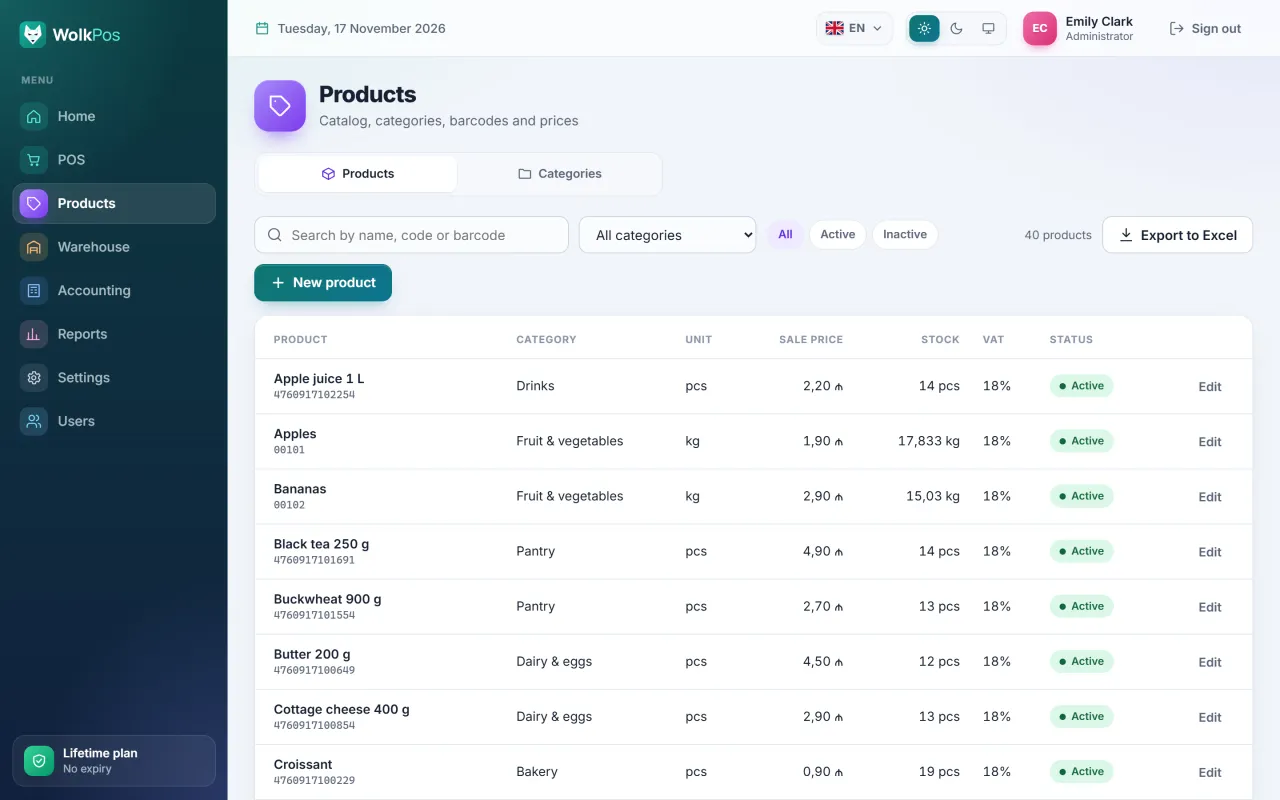
WolkPos product catalog: a list of 40 products with name, barcode or scale code, category, unit, sale price, stock, VAT rate and status, plus search, a category filter and export to Excel.

Warehouse

Every movement is a document

From goods receipt to stocktaking, every operation is a document: first a draft, then posted. A wrong document isn’t deleted but cancelled with a reversing entry, so the history is never lost.

  • Goods receipt, write-off, transfer, stocktaking and return to supplier
  • Draft → posted → cancelled (reversing entry)
  • Movement journal
  • Weighted average cost
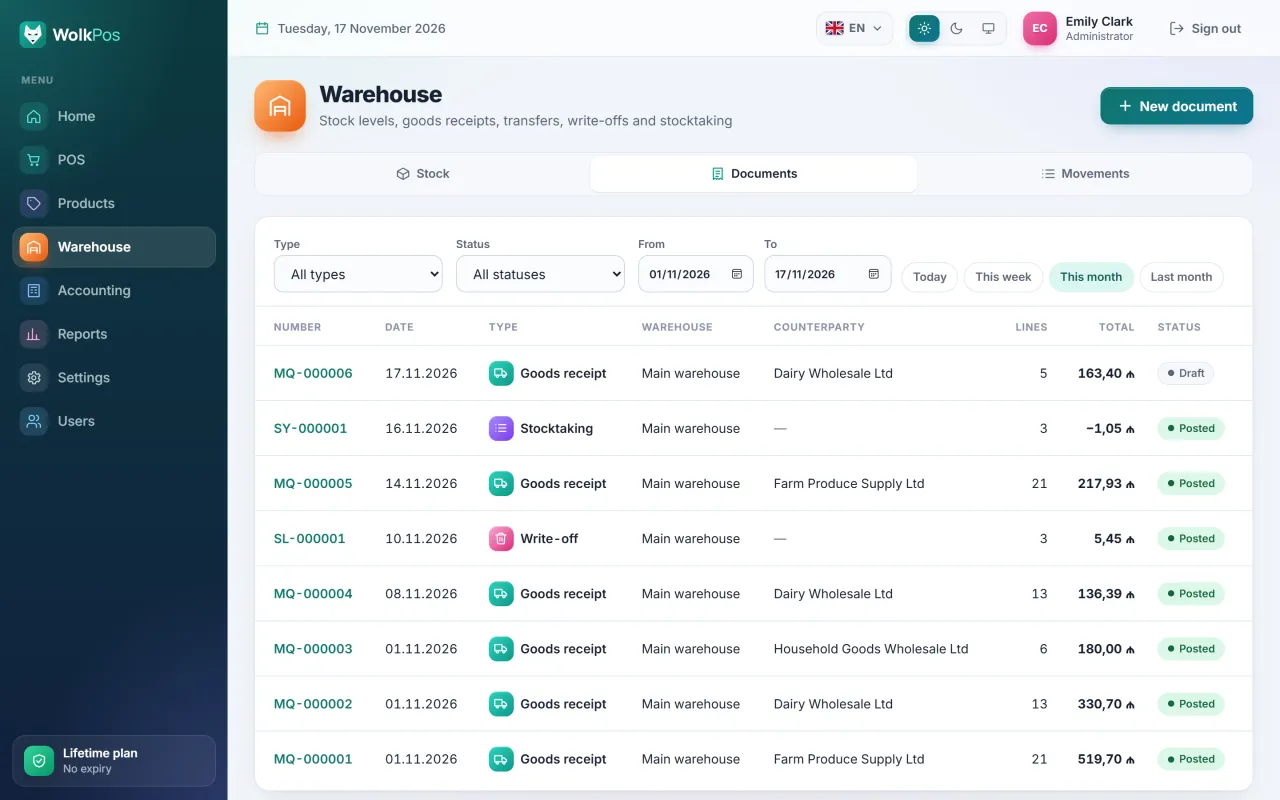
WolkPos warehouse section, document list: goods receipts from suppliers, a write-off and a stock count, with number, date, type, warehouse, counterparty, line count, total and status (posted or draft), plus type, status and period filters.

Accounting

Money and debts at a glance

How much money is in the till and in the bank, how much you owe suppliers and how much customers owe you — all in one place.

  • Money accounts and cash flow
  • Expenses, income, payments and transfers
  • Supplier and customer debts, statement of account
  • Profit and loss
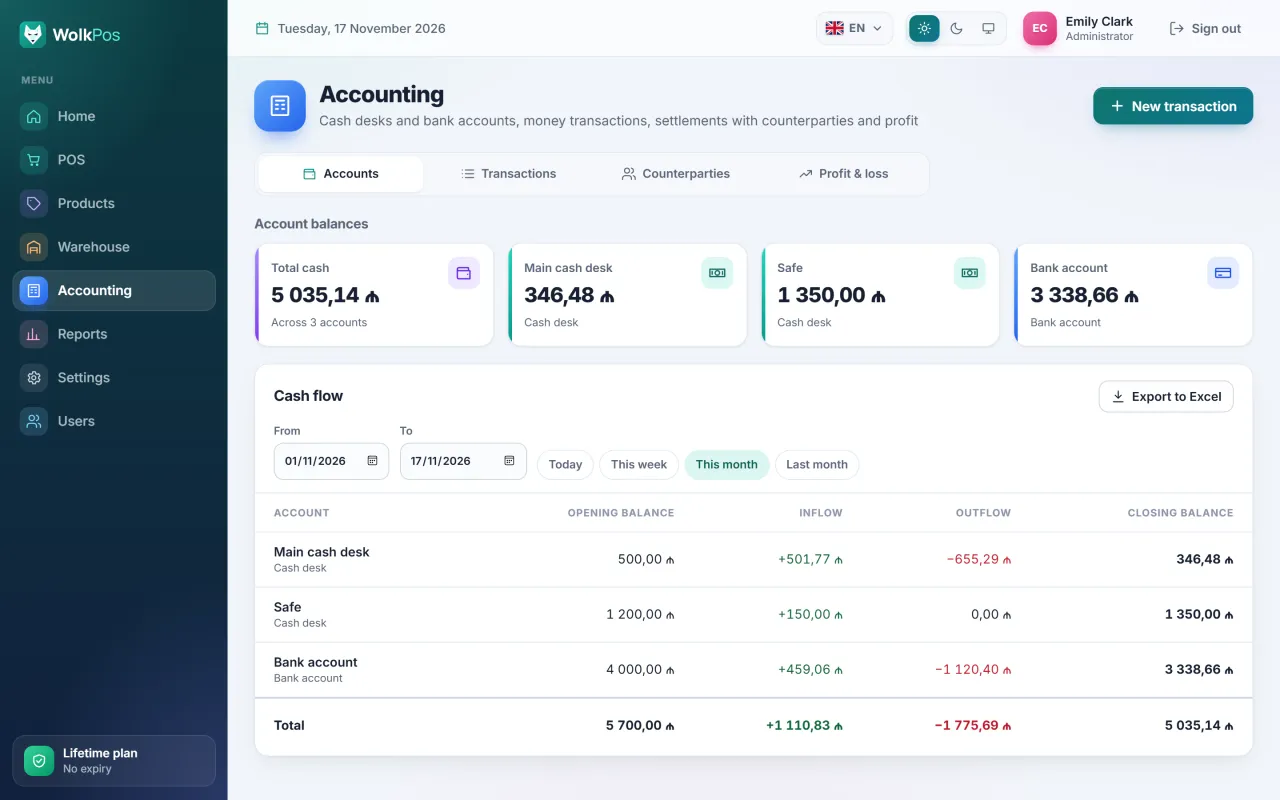
WolkPos accounting section: balances of the main cash desk, the safe and the bank account, total funds, and a cash-flow table for the current month with opening balance, money in, money out and closing balance.

Reports

The numbers on one screen

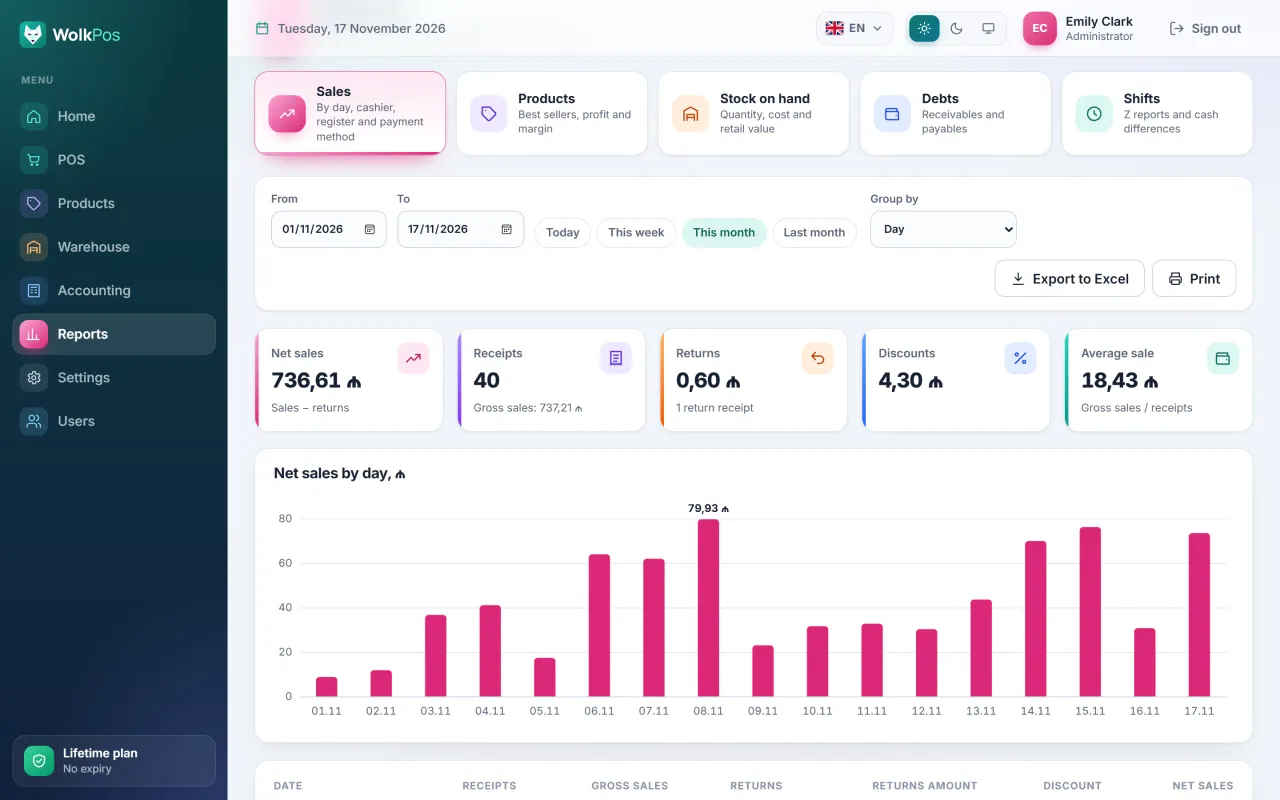
See sales by day, cashier, register and payment method. Every report can be exported to Excel and printed.

  • Sales by day, cashier, register and payment method
  • Profit by product
  • Stock levels and debts
  • Z reports
  • Excel export and printing
WolkPos sales report: net sales for the current month, number of receipts, returns, discounts and average receipt, with a bar chart of net sales by day, period selection, grouping, export to Excel and printing.

Benefits

Small things you need every day

Features that make store work easier and keep your data safe.

  • Several registers, one database

    The program is installed on a server computer, and the other registers connect to it over your local network. They all share the same stock and the same reports.

  • 5 languages

    Azerbaijani, Russian, Turkish, English and Uzbek. Each user picks their own language — even cashiers who take turns at the same register.

  • Your data on your computer

    Sales, products and accounts are never sent to any cloud: the database lives on your server computer.

  • Daily backup

    The program backs up the database by itself every day and keeps the last 14 days of backups.

  • Scale barcodes

    When a scale label barcode (starting with 20–29) is scanned, the product is found by its code and the weight is entered as the quantity.

  • Excel export and printing

    Export reports to an Excel file with one click: column names are in your language and numbers stay numbers.

  • Works without internet

    Sales, stock and reports don’t need the internet. It is only needed to activate and check the license.

  • Roles and permissions

    Administrator, accountant, storekeeper and cashier: everyone sees only the sections they are allowed to. Permissions can be changed.

Getting started

Up and running in four steps

Installation takes a few minutes. The trial needs no sign-up and no payment.

  1. Download

    Download the installer from this site. One file works for both server and cashier computers.

  2. Install

    Choose “Server computer” on the main PC and “Cashier computer” on the other registers.

  3. Try it free for 3 days

    Open the program and click “Start the 3-day free trial”. Every feature is included; the internet is needed only once.

  4. Buy a license

    Enter your key in Settings → License. Everything you entered during the trial is kept.

How to download and install

License

Plans

All plans include the same features; only the term is different. Try it free for 3 days before you buy.

  • Monthly

    1 month

    • Renewed every month
    • 7-day grace period, then read-only mode
    • The key stays the same when renewed
    Try free for 3 days
  • Yearly

    12 months

    • Renewed once a year
    • 7-day grace period, then read-only mode
    • The key stays the same when renewed
    Try free for 3 days
  • Lifetime

    No expiry

    • Bought once
    • Never expires
    • No renewal needed
    Try free for 3 days
  • The license is bound to one server computer. If you change computers, it is moved with WolkPos’s approval.
  • The number of registers is set in the license. The trial lets you use 2 registers.
  • The program checks the license online every day. If it has no internet for 30 days, it switches to read-only mode. Offline activation is available for stores without internet.
  • Nothing is lost in read-only mode: you can still view and export your data.

FAQ

Frequently asked questions

What people ask most often before they download.

How does the free trial work?

Install and open the program, then click “Start the 3-day free trial” (or Settings → License → “Start trial”). The trial lasts 3 days: every feature is included and you can use 2 registers. Starting the trial needs the internet once.

Each computer gets the trial once. When it ends, the program switches to read-only mode; as soon as you enter a license key you can carry on, and everything you entered is kept.

Do I need the internet?

Not for daily work: sales, stock and reports work offline, and the registers connect to the server computer over your local network. The internet is only needed for the license: to start the trial, activate the key and for the daily check.

If the program can’t check the license for 30 days, it switches to read-only mode. If your store has no internet at all, use offline activation: you send the computer’s code to WolkPos and paste the license text you receive into the program.

Where is my data stored?

On your server computer, in the database installed with the program (C:\ProgramData\WolkPos). Sales, products, customers and accounts are never sent anywhere.

Only what the license needs goes to the license server: the computer’s code and name, the program version, the license key and, for the trial, the company name. Privacy policy

What happens if I change computers?

The license is bound to one server computer. Enter the same key on the new computer and a computer change request is sent to WolkPos. Once it is approved, the license activates on the new computer automatically and stops working on the old one at its next check.

How many registers can I connect?

The number of registers is set in the license when you buy it. The trial includes 2.

Only a shortcut is installed on cashier computers: they connect to the server computer over the local network, so the server computer must be on during working hours.

Will I lose my data when the license ends?

No. Monthly and yearly plans have a 7-day grace period after they end, then the program switches to read-only mode: you can’t make new sales, but you can view and export all your data. As soon as the license is renewed, you can carry on working.

Does it work with a fiscal cash register (NKA)?

Not directly yet. The fiscal register works separately: you print the fiscal receipt on it, while WolkPos keeps track of sales, stock and reports.

The bank card terminal works separately too: the cashier selects “card” as the payment method and takes the payment on the terminal.

Is it suitable for a pharmacy or a clothing store?

For sales, stock, debts and reports, yes. But batch and expiry date tracking for pharmacies and size and color variants for clothing are not available yet. For now, you can create each size or color as a separate product.

What are the system requirements?

Windows 10 or Windows 11, 64-bit. Administrator rights are needed to install. The program opens in its own Microsoft Edge window (Edge comes with Windows). For several registers, the computers must be on the same local network. More details

Windows warns about an “unknown publisher”. Is it dangerous?

It is the usual Windows SmartScreen warning for new programs: the installer is not yet signed with a digital certificate. Download the file only from wolkpos.com and, if you like, compare its SHA-256 checksum with the one on the download page. Then click “More info” → “Run anyway”. Step by step

How do I update the program?

Download and run the installer for the new version. It finds the existing installation and keeps the database and settings, and the program updates the database itself when it starts. Even if you uninstall the program, your data stays unless you separately confirm deleting it.

Try it free for 3 days

Install it, try it with your own products, then decide. Everything you enter during the trial stays after you buy a license.

Download free